Azure OpenAI
Step 1
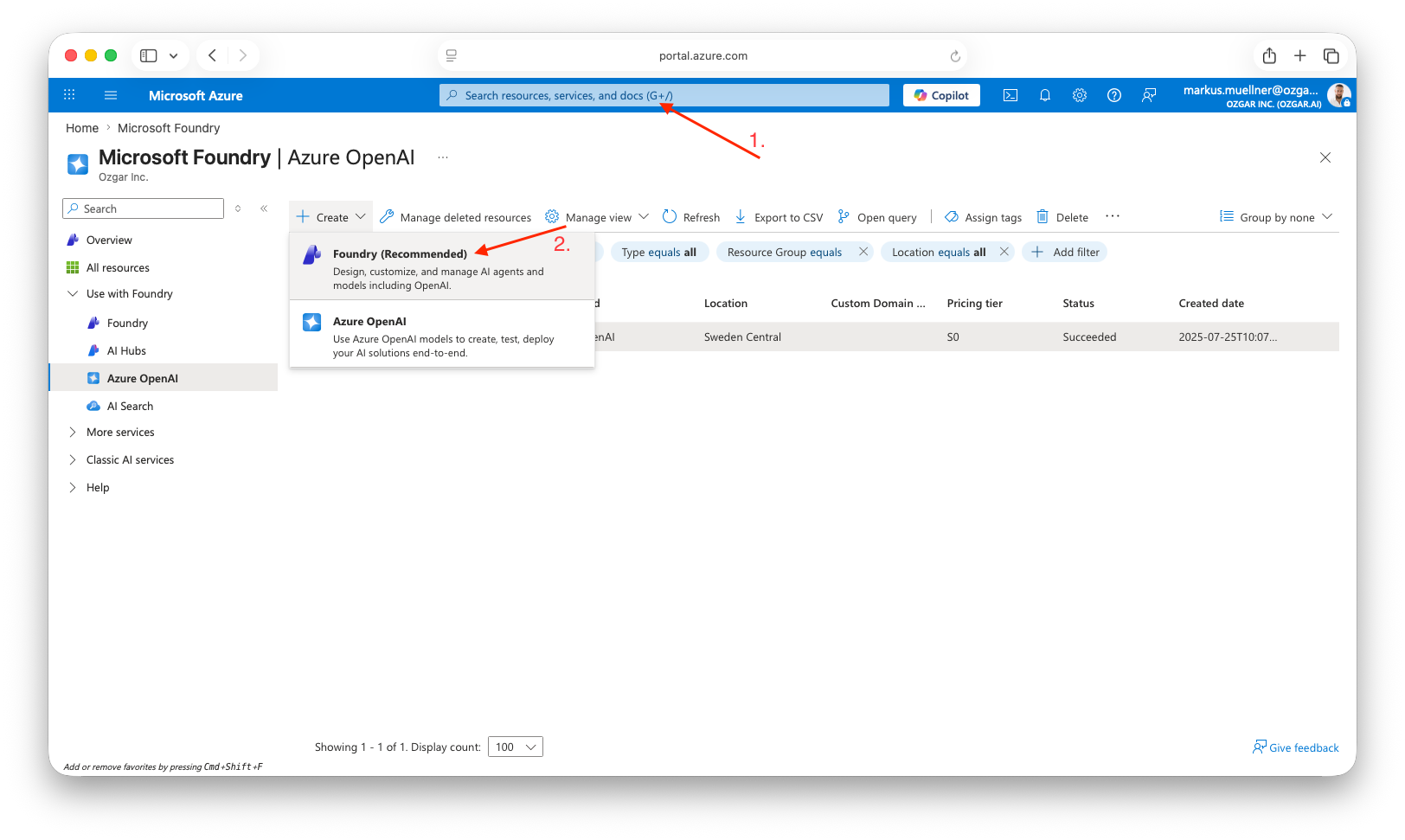
To use Azure LLM deployments with Ozgar, you first need an Azure Foundry resource. In the Azure portal, select the search bar, and enter Azure OpenAI. Now, hit the create button and choose Foundry. Enter your subscription, and resource groups. Then, click Review + create.
Step 2
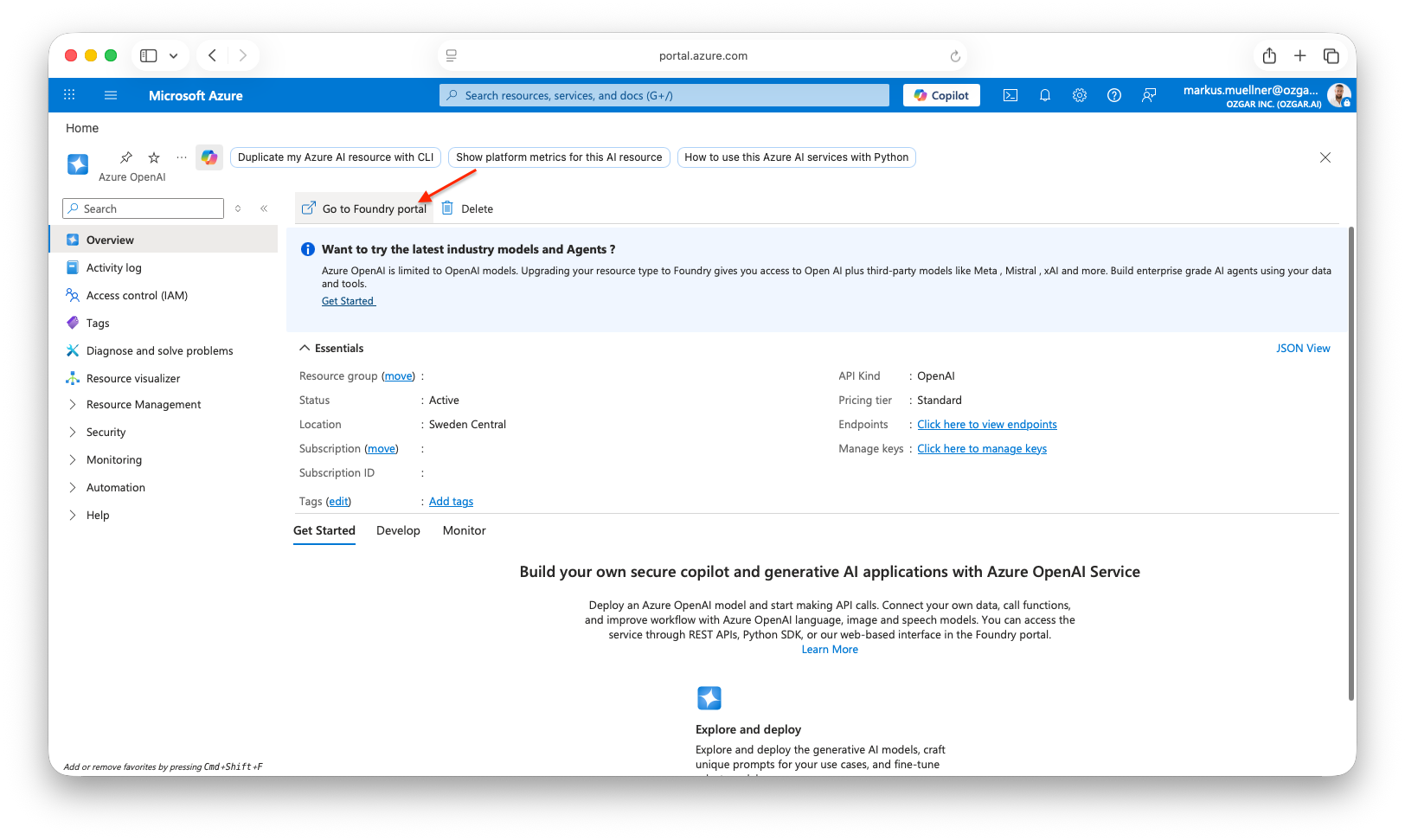
Once the Foundry resource has been created, select it in the Azure portal, and open the Foundry Portal.
Step 3
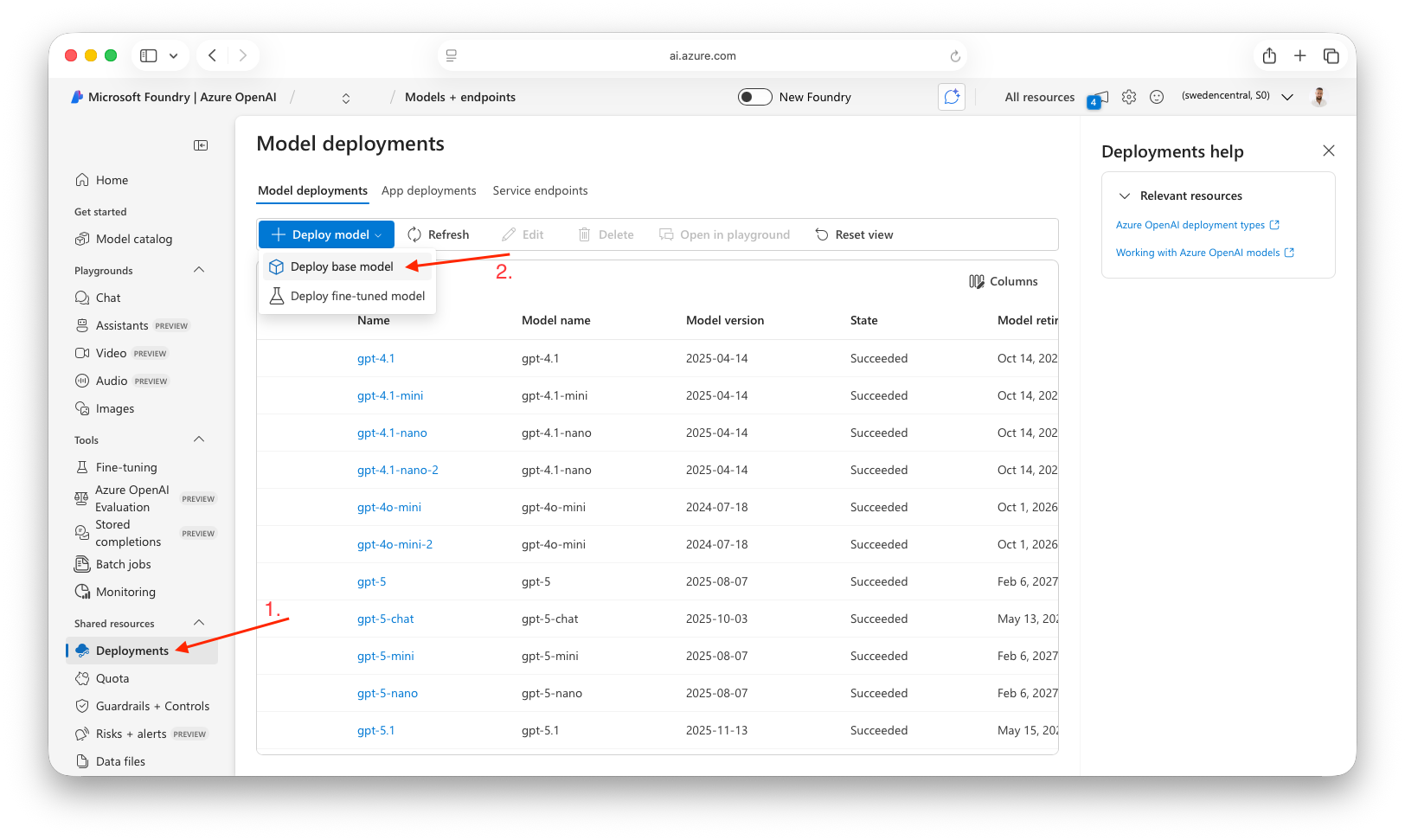
Navigate to Deployments and click on Deploy model. Then, pick Deploy base model.
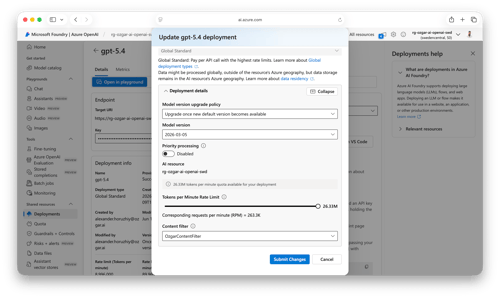
Pick the model you want to deploy. It is recommended to deploy a series of different models for best performance and cost efficiency (see details below).
Make sure to read our guide on data residency and to set up the model in compliance with any applicable regulations: Azure Data Residency
For EU-based customers, this usually means the Global Standard deployment type should be avoided.
Also, make sure to set the token per minute rate limit to the maximum value as shown below.
Best Quality - Default Models
To get started quickly, repeat the deployment steps described in Step 3 for each of the following models, which Ozgar recommends for the best quality:
-
gpt-5.4
-
gpt-5-mini
-
gpt-5.4-nano
-
For embeddings: text-embedding-3-small
More details about our recommended models can be found in the model catalog.
Please note that using a model router deployment is not support. Ozgar aims to make optimal use of different model types for maximum efficiency and performance. Using the model router interferes with Ozgar’s model selection.
Step 4
Once all required models have been deployed to the Foundry resource, it is highly recommended to check the content filtering settings
Content filtering can cause individual Ozgar requests to fail, potentially leading to issues that are difficult to diagnose.
Also see the official documentation provided by Microsoft at: Azure OpenAI Resource